You have to save  and compile
  your project before doing an online change.
You have to save and compile your project before doing an online change.
This section provides a detailed description of the PLC"Programmable Logic Controller" A Programmable Logic Controller, PLC, or Programmable Controller is a digital computer used for automation of industrial processes, such as control of machinery on factory assembly lines. Used to synchronize the flow of inputs from (physical) sensors and events with the flow of outputs to actuators and events Online Change functionality. See Using PLC Online Change for an overview of using this functionality.
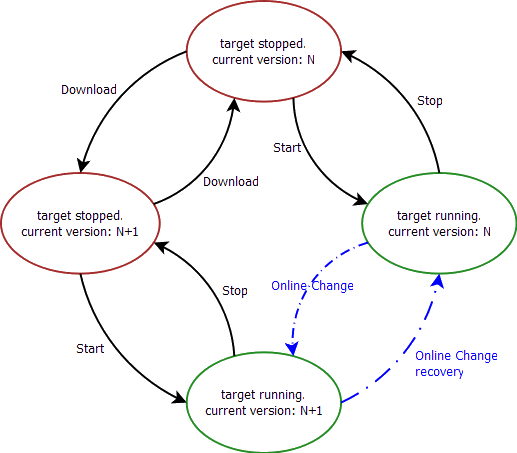
Online Change enables you to update your PLC application on the fly, while it is running on the controller. You do not need to stop the controller, download the new code and start again. You only need to modify, recompile and download the new code as shown in the figure below; and then ask the controller to switch the execution to the new application.
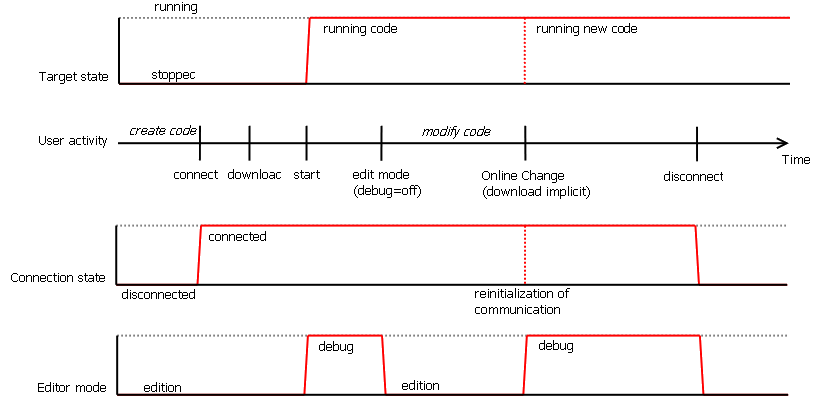
Figure 11-13: Online Change - Process Diagram
This capability applies only to PLC code. This is not supported in the PipeNetwork editor, the PLCOpen axis, or any other part of the system.
Depending on the PLC code size, the time to perform the Online Change operation can take more than one cycle. In that case, you can miss one PLC cycle before the changeover becomes effective.
This duration is also displayed in the Log window with an INFO level message as follows: Online Change done in X µs. For more details, click here .
.
This feature is used in the following situations:
When Online Change is enabled, you can perform the following kinds of changes on the fly:
The following are not allowed:
Using Pulse contacts in FFLD does not give any error, but the behavior of the contact during the switch is not always safe (for more details, as well as workaround, Pulse Limitations with Online Change).
The Online Change and Revert functions will fail while executing a WAIT.
When Online Change is active and custom libraries are being used, some errors can occur during the compilation. This happens if you open your project on another PCPersonal Computer, or under a different user account in Windows. To fix this limitation:
Your new application can contain more variables than the previous one. A memory with sufficient pre-allocated space is defined for the eventual new variables. If you exceed this limit, a warning message is displayed.
For limitation about breakpoint with Online Change, see "About Online Change".
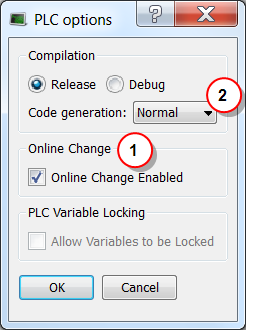
Figure 11-15: PLC Options - Online Change Enable
Set the parameters
This box allows you to enable or disable the Online Change feature (see call out  ).
).
If you deactivate the Online Change, the next PLC application generated is no more compatible for an online change, even if you re-activated the online change before the compilation.
As a result, you can only apply an Online Change to a running application under the two following conditions:
You also need to ensure that you have selected Normal code  as Online Change is not possible with Optimized code. Note that when Optimized code is selected, then Online Change is always deactivated.
Then you can compile your application, which now allows future changes on the fly.
When you start the application, the Debug mode is automatically activated: you can see the values changing in the editors and the Dictionary (animation), showing what is happening on the controller. In this mode the editor is read-only, so you are not able to modify the code.
To edit your code, go out of the Debug mode and enter the Edit mode by clicking the  button in the Toolbar.
Perform the Online Change
When your new code has compiled correctly, you can perform the Online Change. To do so, click the  button. When you click this button, the KAS IDE"Integrated development environment"
An integrated development environment is a type of computer software that assists computer programmers in developing software.
IDEs normally consist of a source code editor, a compiler and/or interpreter, build-automation tools, and a debugger opens a window showing the execution of current actions (download, activation of new code).
button. When you click this button, the KAS IDE"Integrated development environment"
An integrated development environment is a type of computer software that assists computer programmers in developing software.
IDEs normally consist of a source code editor, a compiler and/or interpreter, build-automation tools, and a debugger opens a window showing the execution of current actions (download, activation of new code).
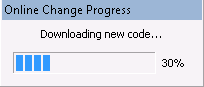
Figure 11-16: Online Change - Updating Controller Version
Once the Online Change is applied, the result is displayed in the window and you can click OK to acknowledge the operation and do a Warm start.
Dictionary behavior
When the Online Change is enabled, the dictionary shows:
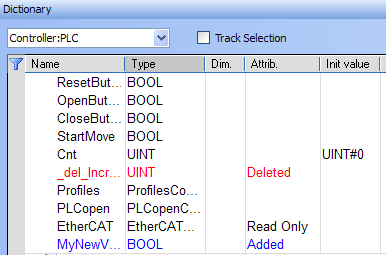
Figure 11-17: Online Change - Dictionary
The deleted variables can be for new variables.
The Revert button is for security purposes. It allows you, after an Online Change, to revert your change quickly and go back to the previous application. That means switching the execution of the controller to the P-code that was running before the last Online Change (note that the source code in the KAS IDE is not replaced). The WAIT and WAIT_TIME instructions can not be used with Revert.
After the Revert, the KAS IDE automatically goes back to Edit mode and is disconnected from the controller. The user must manually reconnect to the controller.
You can go back to the previous version only when the Online Change feature is activated and while the controller is not stopped.
After a revert operation, the Online Change feature is deactivated.
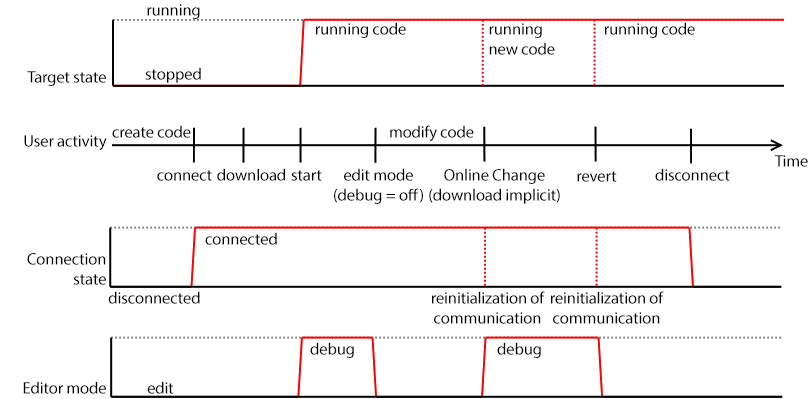
Figure 11-18: One-click Recovery - Process Diagram
The Revert button is active when you are connected and the controller is running.
Revert is not possible:
When you restore a project with the Revert feature after an Online Change, KAS provides a tool to show the differences between two versions of the project. This tool can help you in checking all modifications before the next Online Change. It is also a useful tool when you want to compare your code with the last version after a Revert.
For more details, refer to Compare PLC Programs.
|
Stay Connected with Kollmorgen       
|
Copyright © 2015 Kollmorgen™ |

|